
Step 1
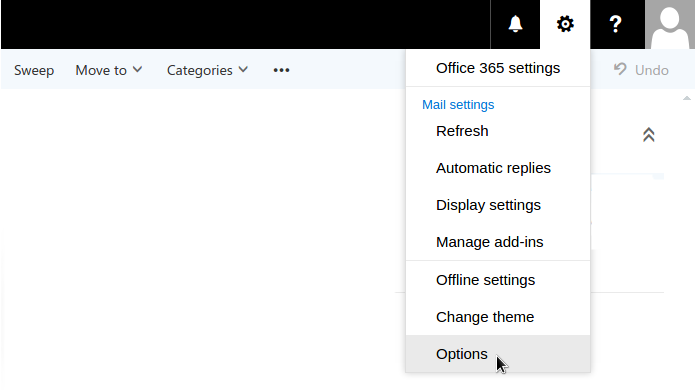
Firstly sign into your webmail via outlook.office365.com and then navigate to the options page by clicking the cog in the top right of the screen and selecting the last option in the drop down menu.
Step 2
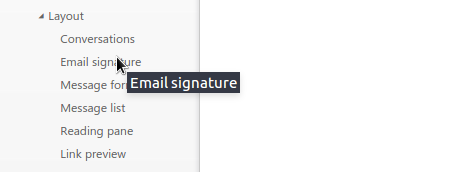
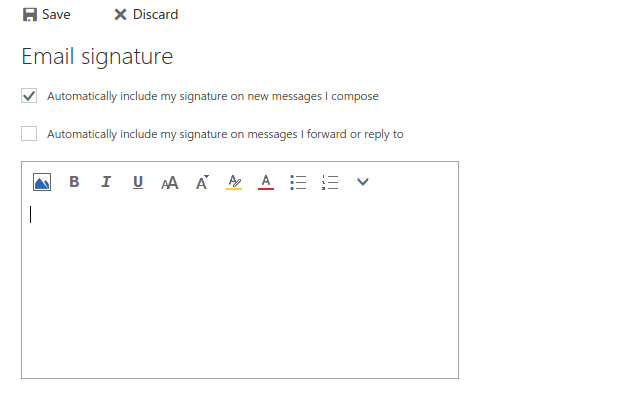
Next click on the Email signature sub menu from within the layout options. You should see a screen with an empty textarea. This is where you signature will eventually go.
Step 3
You should be given a link to your new template that will need to install. Open the link in a new tab. There is a live preview and some code on the page. You will need to copy the contents of your signature and not the code to your clipboard.

Step 4
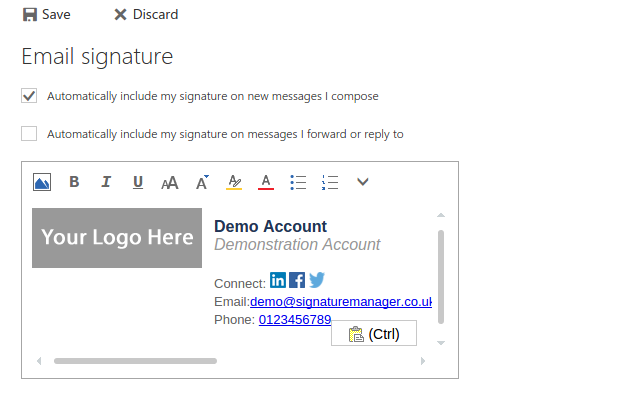
Go back to the outlook settings screen and paste in your signature into the empty textarea
and click on the save button.
Step 5
Finally, return to your inbox and send a blank email (but still including your signature) to info@signaturemanager.co.uk and you will be sent a report on your signature to check that it has been installed correctly.