
Because Outlook destroys the source code when you import an email signature on Windows things become tricky and you will need to import it manually. This can be a challenge but by following this guide you will have your new template installed and working correctly.
Step 1
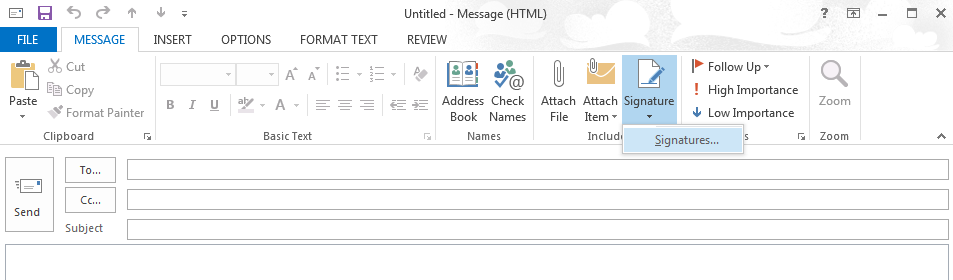 Firstly create a new email signature and call it "Signature Manager Template"
the normal way (Create a new email, in the ribbon there should be a button
called Signature click it and then click "Signatures..."). Don't add any content
to the signature and click OK. Next click the "New messages" dropdown and make
sure that the new template is selected to have it automaticly added to the
footer of each new email you send.
Firstly create a new email signature and call it "Signature Manager Template"
the normal way (Create a new email, in the ribbon there should be a button
called Signature click it and then click "Signatures..."). Don't add any content
to the signature and click OK. Next click the "New messages" dropdown and make
sure that the new template is selected to have it automaticly added to the
footer of each new email you send.

Step 2
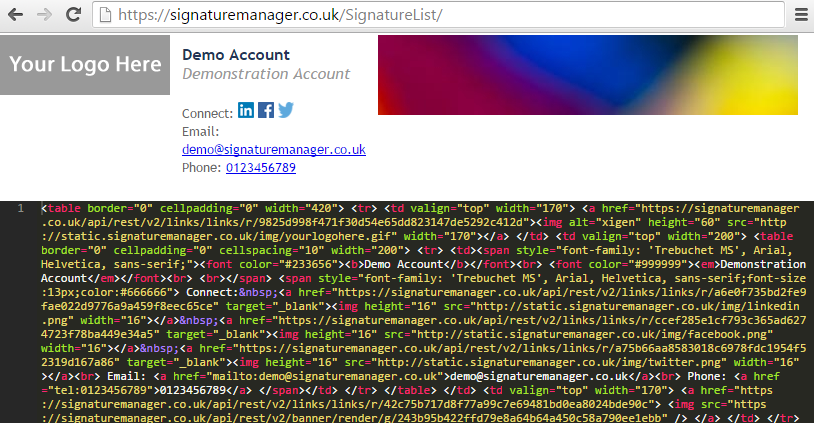 You should be given a link to your new template that will need to download. Open
the link in a web browser. There is a live preview and a snippet of code on the
page. You will need this code later.
You should be given a link to your new template that will need to download. Open
the link in a web browser. There is a live preview and a snippet of code on the
page. You will need this code later.
Step 3
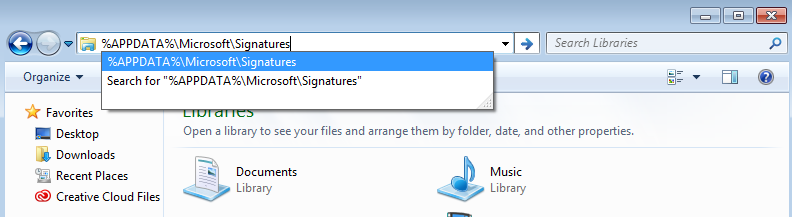
Open up the file browser and navigate to "%APPDATA%\Microsoft\Signatures" without quotes. There should be file called "Signature Manager Template.htm", open this in a program that can edit text files such as Notepad. If there is any code / text within this file it should be removed as it will be replaced later.
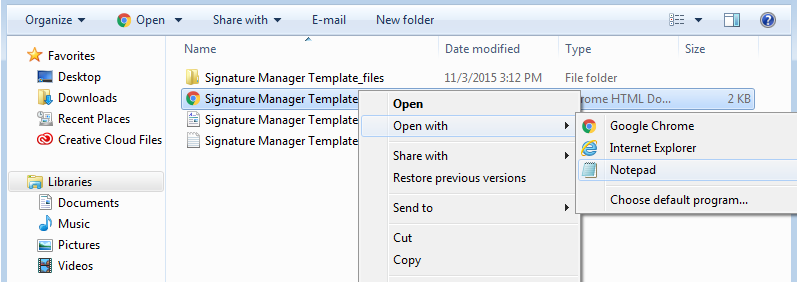
Step 4
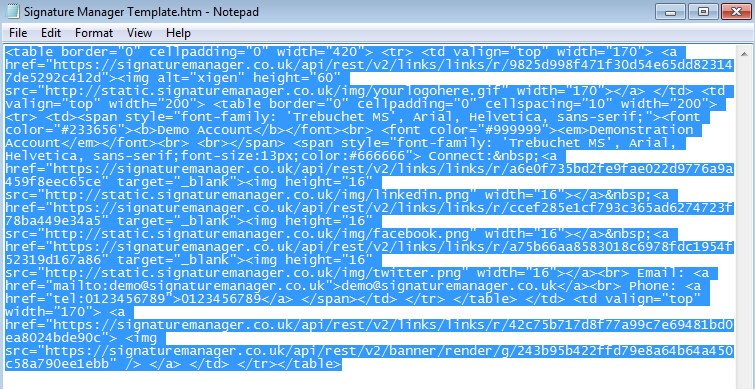 Simply copy accross the code from the preview page into the editor and save it,
making sure that all of the code was copied accross. Close the editor and the
file browser.
Simply copy accross the code from the preview page into the editor and save it,
making sure that all of the code was copied accross. Close the editor and the
file browser.
Step 5
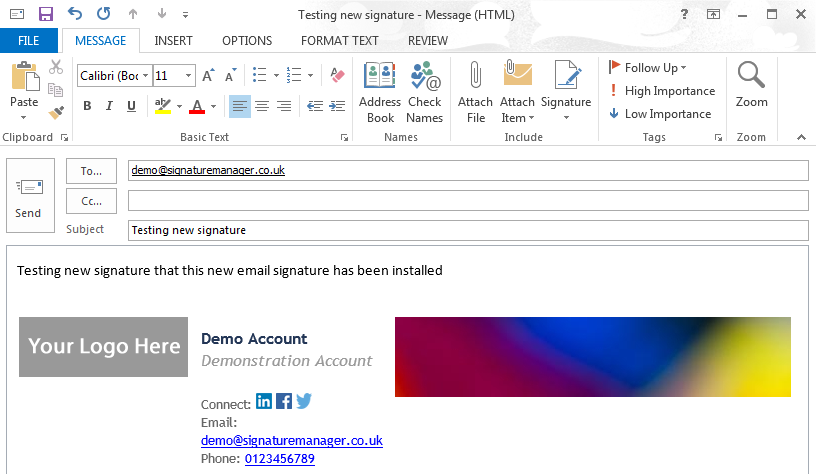 Finally, return to your inbox and send a blank email (but still including your signature) to
info@signaturemanager.co.uk
and you will be sent a report on your signature to check that it has been installed correctly.
Finally, return to your inbox and send a blank email (but still including your signature) to
info@signaturemanager.co.uk
and you will be sent a report on your signature to check that it has been installed correctly.